
The offline-first grocery list app that works without signal
Keep shopping with lists already stored on your device when the signal disappears. Core item changes update locally, wait in a durable queue, and synchronize after your device reconnects.
What can you do without an internet connection?
-
Edit stored lists offline
Open lists that were already stored on the device. Add, rename, check, delete, reorder, reprice, or change item quantities and continue a shopping session through a connection interruption.
-
Automatic sync when online
Supported item operations enter a durable pending queue. When connectivity returns or the app starts, ListAIse compacts compatible operations and replays the remaining changes in order.
-
Conflict resolution
Before replaying an offline edit, ListAIse checks the current server list. Stale edits or reorders can be dropped when a collaborator has already saved newer state, preventing an old device from blindly overwriting the latest shared list.
Why offline-first matters
- Shop in stores with poor cell reception
- Check off cached items without waiting for a network request
- Keep supported edits queued across an app restart
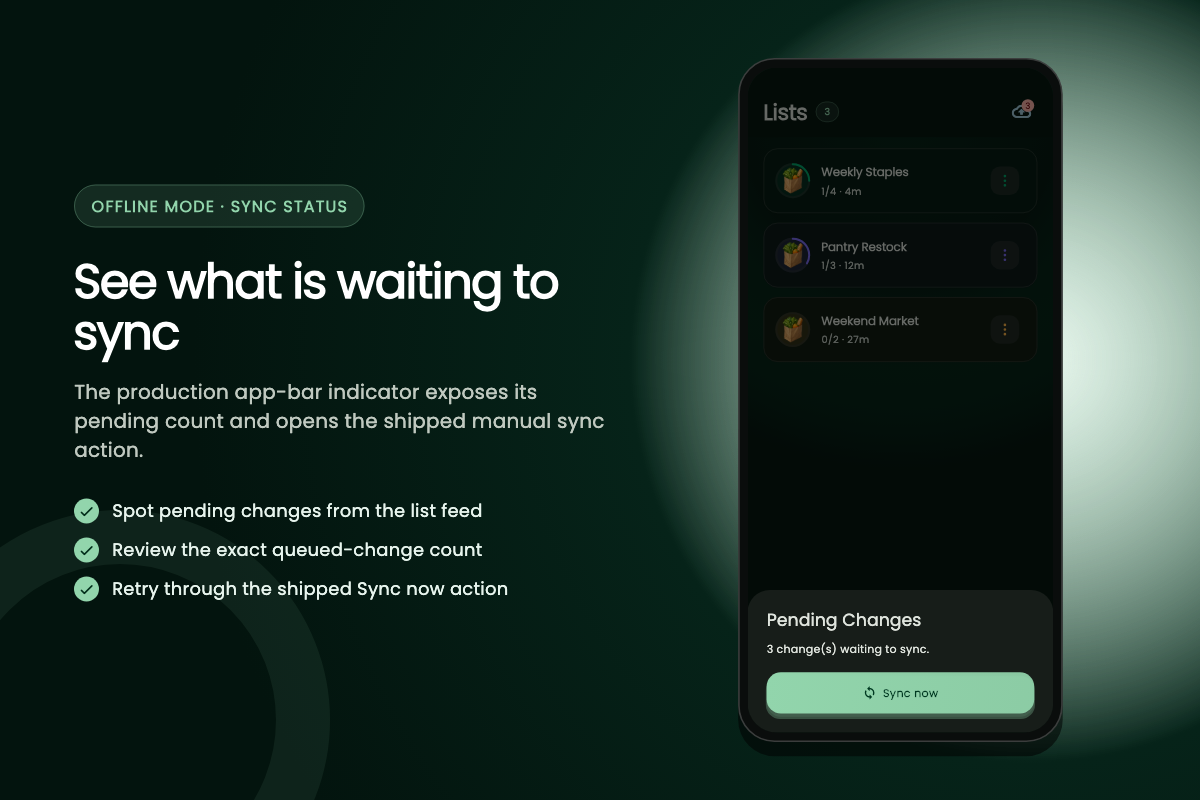
- See a pending count when in-app changes still need to sync
- Retry queued work from the Pending Changes sheet
How does offline synchronization work?
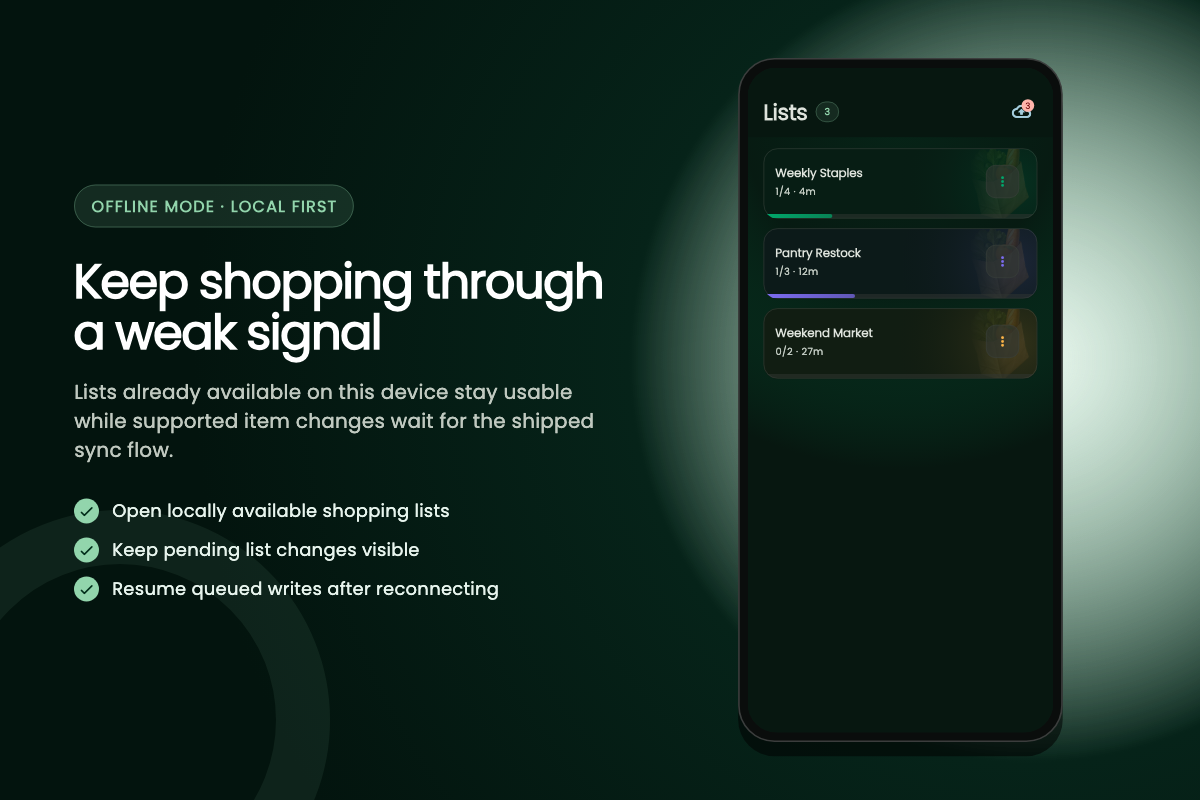
Open the lists you expect to use while you still have a connection. That gives the app a chance to cache the latest list data before you enter a basement store, travel area, or other low-signal location. Offline mode cannot display a cloud record that has never been downloaded to the device.
The pending queue and Sync now
Supported item changes update the local list first, so checking off milk or changing a quantity does not wait for the network. The durable queue preserves those operations for later replay. A cloud-upload badge shows the pending count; tapping it opens the Pending Changes sheet, where Sync now retries in-app queued operations after connectivity returns.
Successful operations leave the queue and the badge disappears when its pending count reaches zero. If an error remains, keep the app installed and reconnect before clearing data or reinstalling. Removing the app while local changes are unsynchronized can discard work that never reached the cloud.
What happens when offline edits conflict?
A shared list may change on another phone while your device is offline. ListAIse reconciles this automatically; there is no manual screen that asks you to choose one complete version of the list.
How replay handles newer data
Incoming snapshots do not overwrite optimistic local state while that list still has pending work. During replay, stale item edits and stale reorders can be skipped if newer server data exists. Deleted lists or lost permissions stop replay for that list and may surface a sync warning.
For a heavily shared list, reconnect before a large reorder or batch of changes. This gives the app recent collaborator state and reduces the chance that an older queued operation must be discarded.
Which features still need internet?
Cloud recipe import, cloud AI requests, invitations, account actions, subscription changes, backups, and live updates from other shoppers need a connection. Installing a missing on-device AI model also requires a download before that model can be used offline.
What the queue does not cover
The durable queue is focused on supported list-item mutations; it is not a promise that every failed cloud action will run later. If you need a recipe on the trip, import it and open the resulting list before leaving the connection. If you collaborate, allow the pending badge to clear before going offline again.
Who is offline-first shopping useful for?
It helps anyone who shops in a basement supermarket, travels through patchy coverage, uses limited mobile data, or shares a list across phones that are not always online together. The local-first path keeps the immediate shopping task—reading cached items, changing quantities, and checking products off—separate from the network’s availability.
Why you still need to reconnect
It is not a substitute for synchronization. Households still need to reconnect so other members receive changes, and a new device must download its lists before it can use them offline. Treat the pending badge as the handoff point: once it clears, the supported local operations have finished replaying and the next offline session begins from a more current shared list.
Ready to shop anywhere?
Open the lists you need while connected, then keep using their core item actions when the signal drops.
Fill those offline lists straight from AI recipe import or from the recipes saved in your recipe library. For details on how sync works, read the offline mode guide.